
If you manage a WordPress site, you have likely seen the dreaded message:
“There has been a critical error on this website. Please check your site admin email inbox for instructions.”
But what if that email never arrives? If your server isn’t configured for SMTP, you won’t get the error report. (Read our guide on Fixing WooCommerce & WordPress Email Delivery to ensure your notifications work).
Or perhaps you are staring at the “White Screen of Death” (WSOD)—a completely blank page where your website used to be.
For business owners, this is a heart-attack moment. For developers, it is Tuesday.
The “Critical Error” usually means PHP has crashed due to a code conflict, a memory limit issue, or a plugin update gone wrong. The problem is, WordPress hides the actual error message to protect your site’s security.
To fix it, we need to turn the lights back on.
As senior developers, we don’t guess what broke. We use WordPress Debug Mode to find the exact line of code causing the crash. Here is the manual checklist we use at WeFixCode to revive dead sites.
Step 1: Turn on the Lights (WP_DEBUG)
Since you probably can’t access your WordPress Admin dashboard right now, you need to access your server files directly.
- Connect via FTP (FileZilla) or use your Hosting File Manager.
- Navigate to your main folder (usually
public_html). - Find the file named
wp-config.php. - Edit this file.
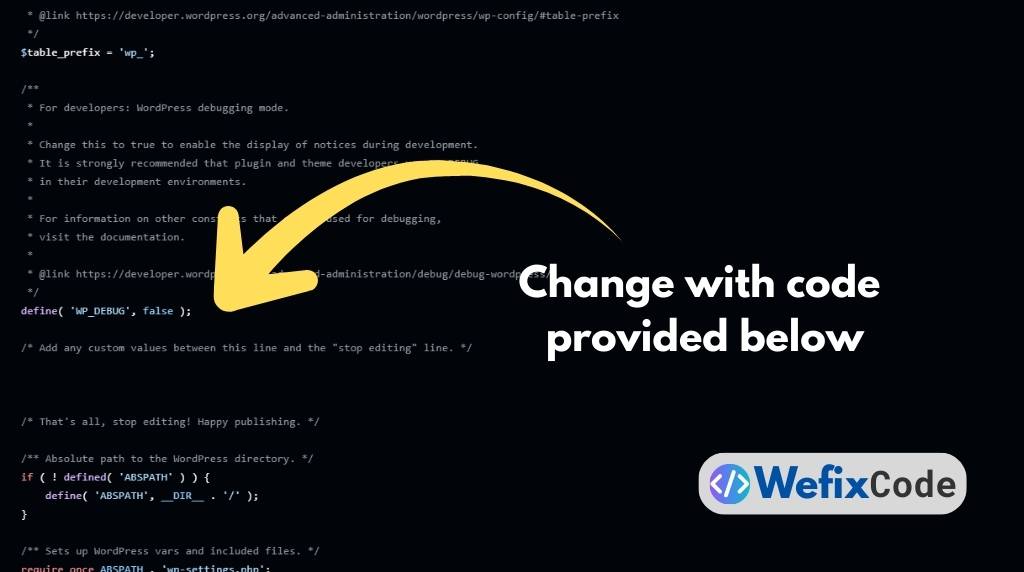
- Scroll down until you see a line that says:
define( 'WP_DEBUG', false );
Change that line to this:
PHP
// Enable WP Debugging
define( 'WP_DEBUG', true );

// Write errors to a log file called debug.log
define( 'WP_DEBUG_LOG', true );

// Don't show errors on the screen (keep it professional)
define( 'WP_DEBUG_DISPLAY', false );
Save the file.
By adding WP_DEBUG_LOG, we are telling WordPress: “Don’t just crash. Write the error down so I can read it.”
Step 2: Read the debug.log File
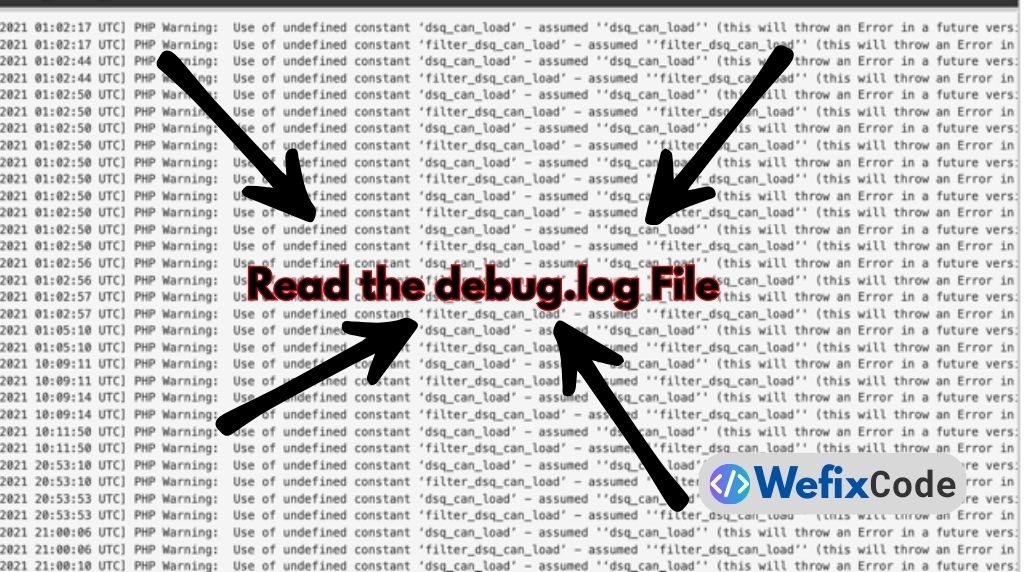
Now that debugging is on, go back to your website and refresh the broken page. It will still look broken, but now WordPress has secretly recorded the error.
- Go back to your File Manager.
- Navigate to the
/wp-content/folder. - Look for a new file called
debug.log. - View/Edit this file.
Inside, you will see a timestamped list of errors. Look for the words “Fatal Error” or “Parse Error”.
It will look something like this: PHP Fatal error: Uncaught Error: Call to undefined function... in /wp-content/plugins/bad-plugin/index.php on line 42
Bingo. The log tells you exactly who the culprit is. In this example, it is a plugin called bad-plugin.
Step 3: The Manual Disable (Renaming)
Now that you know which plugin (or theme) is causing the crash, you need to disable it. But since you can’t log in to your dashboard, you have to do it manually.
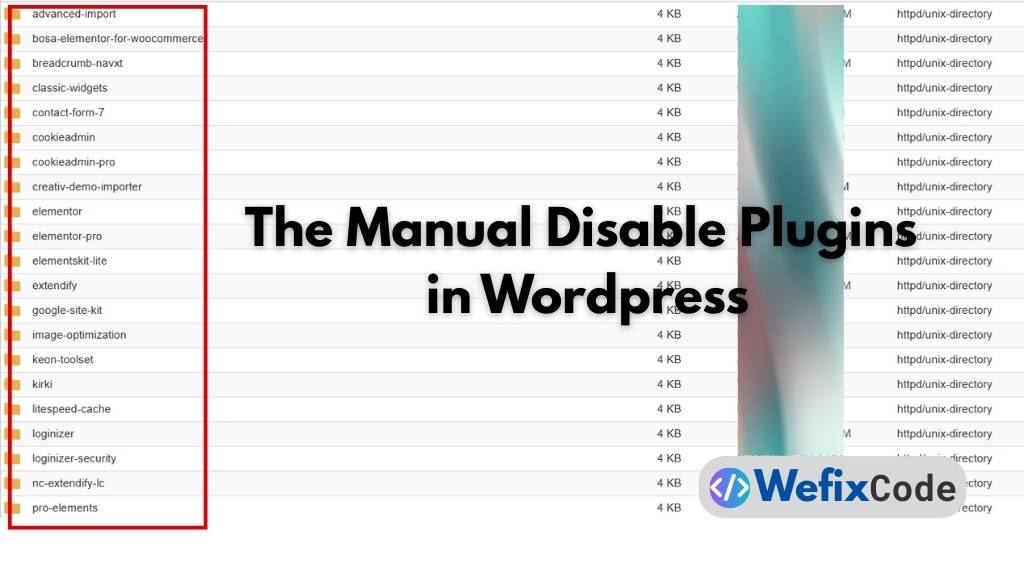
- Navigate to
/wp-content/plugins/. - Find the folder of the plugin causing the error (e.g.,
bad-plugin). - Rename the folder to
bad-plugin-OFF.
Why this works: When you rename the folder, WordPress can no longer find the plugin files. It automatically deactivates the plugin and—99% of the time—your website comes back online immediately.
Pro Tip: If you don’t know which plugin is breaking the site, rename the entire plugins folder to plugins-OFF. This disables all plugins. If your site comes back, you know one of them was the problem.
Step 4: Check Your PHP Version
If disabling plugins didn’t work, the issue might be your server environment.
WordPress and modern plugins require PHP 7.4 or newer (ideally PHP 8.0+). If your hosting account is running an ancient version like PHP 5.6, modern code will crash immediately.
- Log in to your cPanel or Hosting Dashboard.
- Look for “MultiPHP Manager” or “Select PHP Version”.
- Check what version your domain is using.
- If it is outdated, upgrade it to PHP 8.1 or 8.2.
Step 5: Increase Memory Limit
Sometimes, the “Critical Error” is just your server running out of juice.
- Open your
wp-config.phpfile again. - Add this line just before the “That’s all, stop editing” comment:
PHP
define( 'WP_MEMORY_LIMIT', '256M' );
This gives WordPress more breathing room to run heavy scripts.
Still Seeing the White Screen?
If you have followed this checklist—enabled debugging, checked the log, disabled conflicts, and updated PHP—and your site is still down, you likely have a deeper issue. It could be a corrupted database, a core file mismatch, or a hacked htaccess file.
Don’t risk losing your data by guessing.
At WeFixCode, we diagnose and fix Critical Errors every day. We can usually get your site back online within the hour.
Book an Emergency Debugging Session We find the bug, or you don’t pay.
Pingback: Fixing the WordPress White Screen of Death: A Memory & Resource Guide - WeFixCode