

We hear it from clients every week:
“I love how easy it is to edit my site with Elementor, but it takes 5 seconds to load on mobile. Google keeps failing my Core Web Vitals. Do I need to rebuild the whole thing from scratch?”
The short answer is: No.
Elementor isn’t inherently “bad.” It powers over 10 million websites. The problem isn’t the tool; it’s the bloat.
Out of the box, Elementor loads a lot of scripts, fonts, and CSS files that your specific page might not even use. If you combine that with large unoptimized images and cheap hosting, you have a recipe for a slow website.
As senior developers, we specialize in Performance Tuning. We don’t just install a caching plugin and walk away. We optimize the structure of the site.
Here is the Senior Developer’s Guide to making Elementor fly.
1. The “DOM Size” Problem (Switch to Containers)
If your site was built more than a year ago, it is likely using Sections and Columns. Every time you added a “Section,” Elementor created 3-4 layers of HTML <div> wrappers. This creates a “Deep DOM” (Document Object Model). Google hates this because it makes the browser work hard to render the layout.
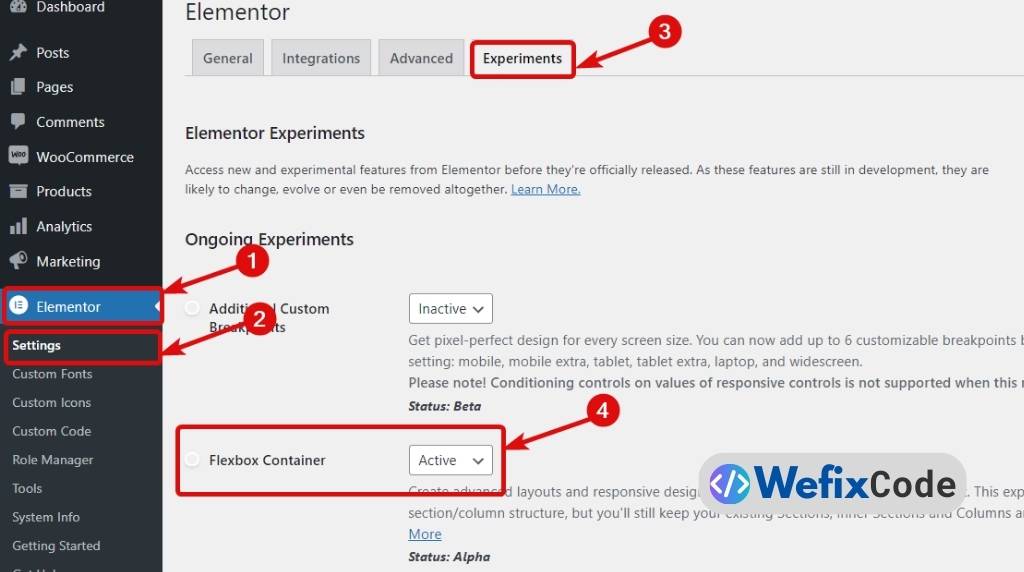
The Fix: Flexbox Containers Elementor now uses Flexbox Containers. Instead of 4 wrapper divs, a Container uses just 1.
- Check if you are using them: Go to a page, edit with Elementor, and look at the Navigator. If you see “Section > Column > Inner Section,” you are on the old system.
- How to switch: You don’t have to rebuild manually. Elementor has a built-in converter.
- Go to Elementor > Settings > Features.
- Ensure “Flexbox Container” is Active.
- Open your page, click the Section handle, and look for the “Convert to Container” button.
Note: Always backup your site before doing this!
2. Stop Loading Unused Assets
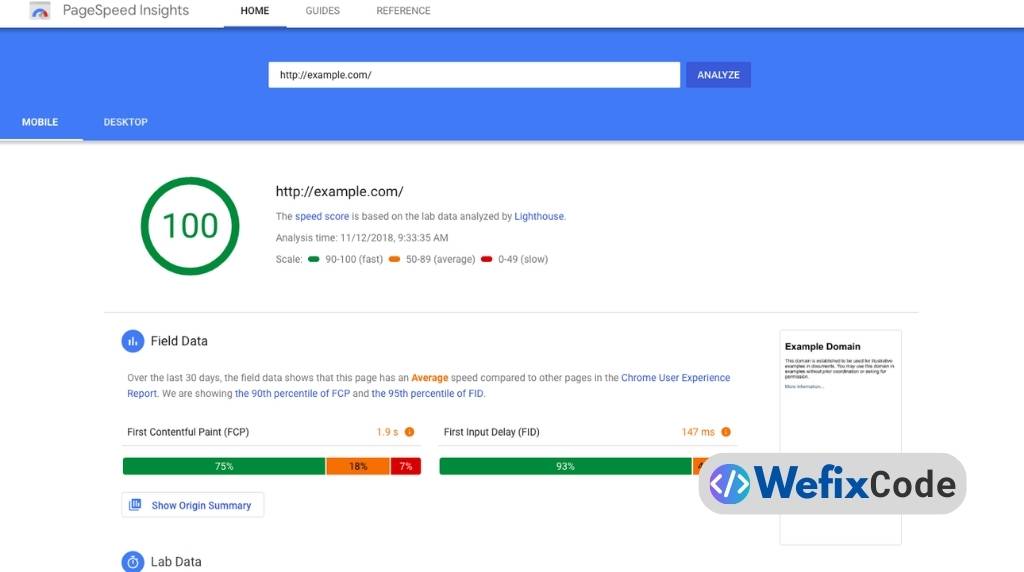
By default, Elementor loads files for every possible widget (Google Maps, Swiper JS, FontAwesome), even if you aren’t using them on that page.
The Fix: Asset Unloading You need to tell WordPress to only load what is necessary.
- Use Elementor’s Native Tools:
- Go to Elementor > Settings > Features.
- Turn on “Improved Asset Loading”.
- Turn on “Improved CSS Loading”. This tells Elementor to only load the code for the widgets you actually put on the page.
- Disable Google Fonts:
- If you aren’t using Google Fonts (or if you are only using one), stop Elementor from loading the entire library.
- Use a plugin like “OMGF” to host fonts locally. This stops the browser from making slow requests to Google’s servers.
3. The “Giant Image” Trap
This is the #1 cause of slow mobile sites. You upload a 2MB photo from your camera, and Elementor displays it in a small 300px box. The browser still has to download the full 2MB file.
The Fix: WebP & Resizing Never upload an image larger than 200KB.
- Compress before uploading: Use a tool like TinyPNG or Squoosh.app.
- Serve in WebP format: Use a free plugin like Performance Lab (by WordPress team) or EWWW Image Optimizer to automatically convert your JPEGs into WebP, which is 30% smaller.
4. Database Cleanup (The Silent Killer)
Every time you hit “Update” on a page, WordPress saves a “Revision.” If you have edited your homepage 100 times, you have 100 copies of that page sitting in your database, slowing down your queries.
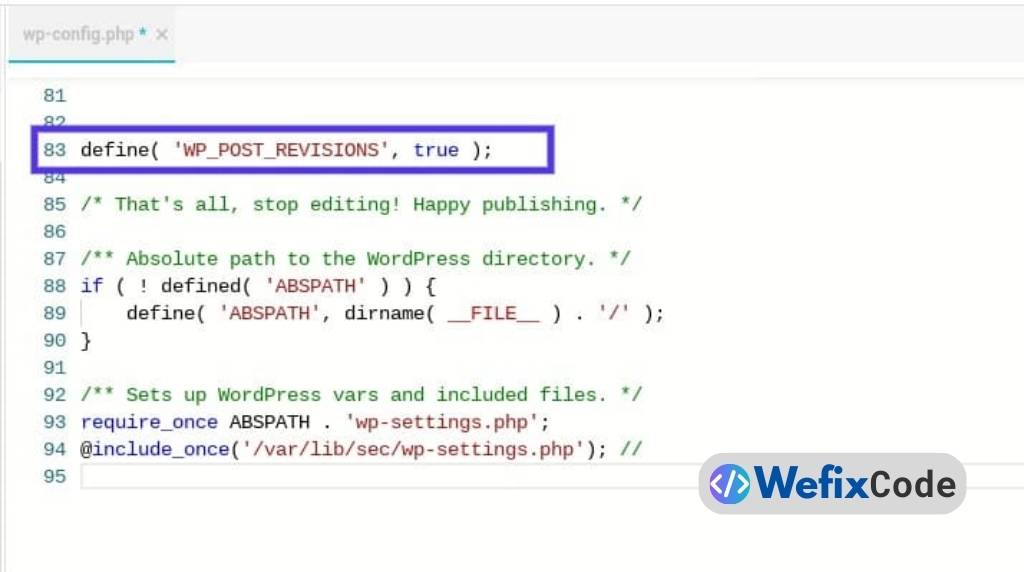
The Fix: Limit Revisions
- Open your
wp-config.phpfile (the same one we used for debugging). - Add this line:
define( 'WP_POST_REVISIONS', 5 );This tells WordPress to only keep the last 5 saves, deleting the rest.
5. Hosting Matters
You cannot optimize a Ferrari engine if you put it in a golf cart.
If you are on “Shared Hosting” (like Bluehost or GoDaddy Basic) for $3/month, your Elementor site will always be slow because you are sharing server resources with 1,000 other websites.
The Fix: Move to a Cloud VPS or Managed WordPress Host (like Cloudways, SiteGround, or Rocket.net). The difference in “Time to First Byte” (TTFB) is often instant.
Still Stuck in the Red Zone?
If you have followed these steps and your Google PageSpeed score is still under 50, you might have deeper issues—like a bloated theme or third-party script conflicts.
Don’t rebuild your site yet. At WeFixCode, we perform deep-dive speed audits. We manually strip out unused CSS and optimize the loading order of your scripts to get you into the Green Zone (90+).
Get a Speed Audit Stop losing customers to slow loading screens.
Pingback: WooCommerce Emails Not Sending? Stop Using PHP Mail (The SMTP Fix) - WeFixCode
Pingback: How to Create Custom Database Tables in WordPress (The Senior Developer Way) - WeFixCode