
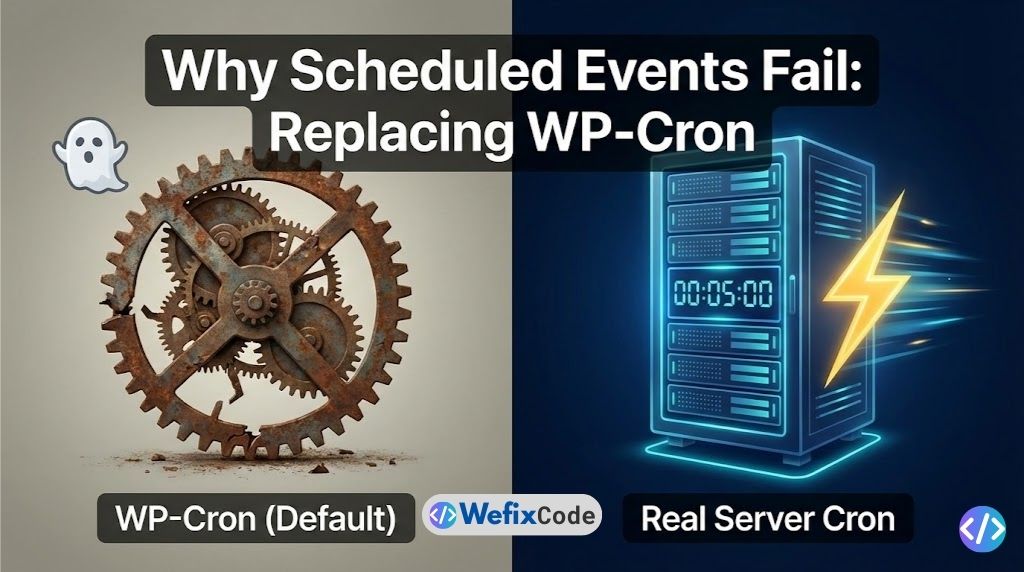
You wrote a blog post and scheduled it for 8:00 AM. You check your site at 9:00 AM, and it still says “Missed Schedule.”
Or perhaps your WooCommerce recurring subscriptions aren’t renewing on time. Or your backup plugin hangs at 50% and never finishes.
These aren’t random glitches. They are symptoms of a fundamental flaw in how WordPress handles time.
WordPress does not have a real “clock.” It relies on a pseudo-cron system called WP-Cron.
As Senior Developers, we don’t rely on “maybe” triggers. We rely on Server Cron Jobs. In this guide, we will explain why WP-Cron fails, how it hurts your site speed, and the exact protocol to replace it with a robust, server-side system.
The Problem: How WP-Cron Actually Works
To understand why it breaks, you need to understand the mechanism.
In a normal server environment (like Linux), a “Cron Job” is a system command that runs at a specific time (e.g., every 5 minutes), regardless of whether anyone is watching.
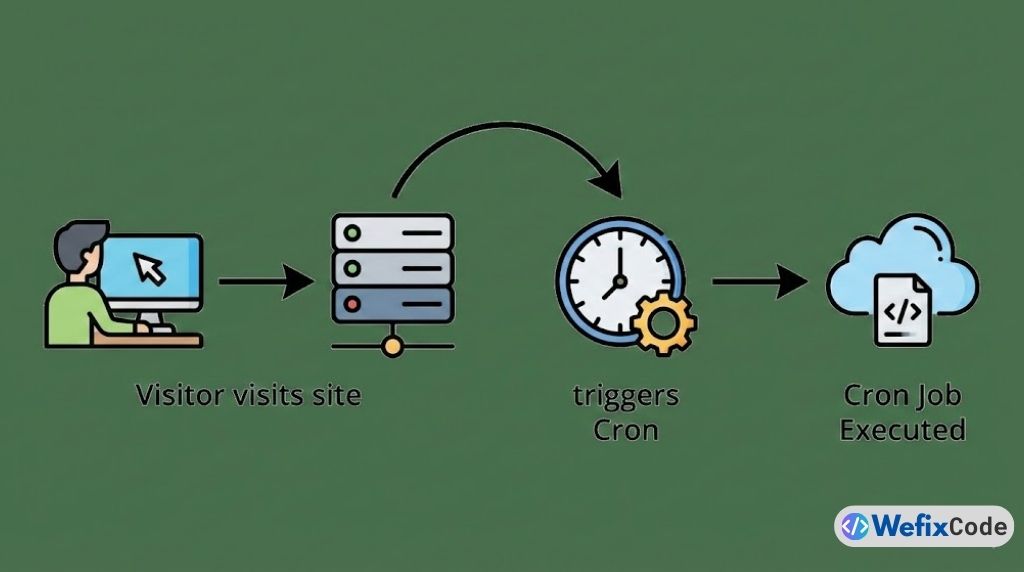
WordPress cannot access the server clock. Because WordPress is just a PHP script, it only “wakes up” when someone visits your website.
The Trigger Mechanism:
- A visitor loads your homepage (
GET /). - WordPress checks: “Is there any task scheduled for now or in the past?”
- If yes, it fires
wp-cron.phpto run the task (publish post, send email, run backup).
Why This Fails (The “Ghost Town” Effect)
If you schedule a post for 8:00 AM, but nobody visits your site until 11:00 AM, WordPress remains asleep. Your post will not publish until 11:00 AM. For low-traffic sites, this makes “Scheduled Posts” useless.
Why This Hurts Performance (The “High Traffic” Effect)
On the flip side, if you have a high-traffic site (10,000 visitors/hour), WordPress is checking for cron jobs 10,000 times an hour. Every time a user loads a page, WordPress spawns a background process to check for tasks. This causes the “High CPU Usage” warning many hosting providers will suspend you for.
The Solution: Disable WP-Cron
The first step to fixing this is to tell WordPress: “Stop checking the time on every page load.”
We do this by editing the wp-config.php file.
Step 1: Edit wp-config.php
- Access your site files via FTP (FileZilla) or your Hosting File Manager.
- Locate
wp-config.phpin the root directory. - Add the following line just before the line that says “That’s all, stop editing”:
define( 'DISABLE_WP_CRON', true );What happens now? WordPress will no longer run scheduled tasks automatically. If you leave it like this, your scheduled posts and WooCommerce emails will never send. We must now create a Real Cron Job to trigger it manually.
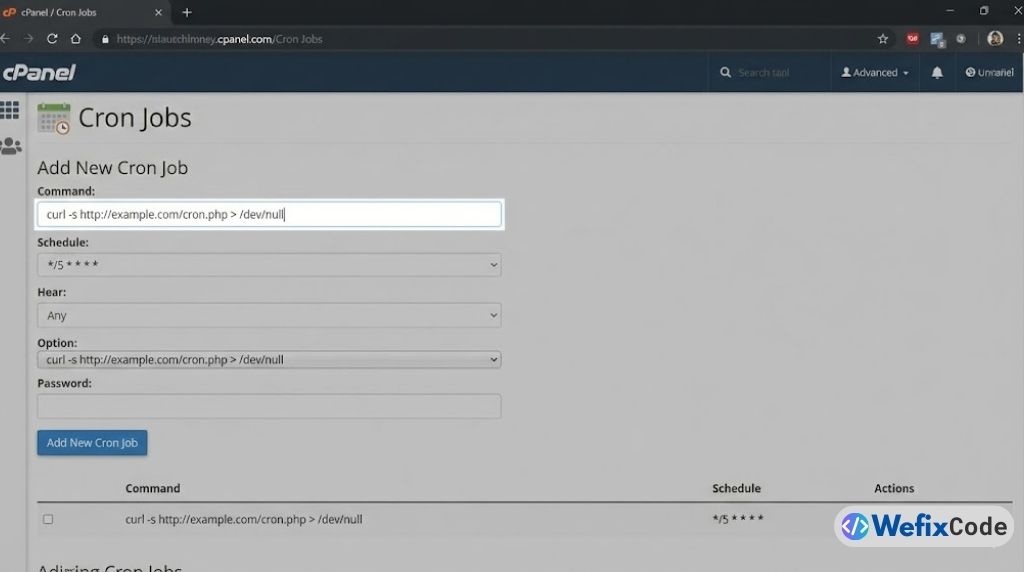
Step 2: Set Up a Real System Cron (cPanel)
Now we need to tell the server (not the visitor) to wake up WordPress every 5 or 10 minutes.
Most hosting providers use cPanel. If you use a managed host like Cloudways or RunCloud, the interface is different but the logic is the same.
- Log in to your cPanel.
- Scroll down to the Advanced section and click Cron Jobs.
- Add New Cron Job:
- Common Settings: Select “Once Per 5 Minutes” (or “Twice Per Hour”).
- Note: Do not run it every minute unless you have a dedicated server. Every 5-15 minutes is standard.
- Command: Enter the following command (replace with your actual path):
- Common Settings: Select “Once Per 5 Minutes” (or “Twice Per Hour”).
wget -q -O - https://wefixcode.com/wp-cron.php?doing_wp_cron >/dev/null 2>&1Understanding the Command:
wget: A tool that “visits” a URL.-q: Quiet mode (don’t output text).-O -: Output to console (discarded).>/dev/null 2>&1: This is critical. It sends the output to a “black hole” so your server doesn’t email you a notification every 5 minutes.
Step 3: Verifying It Works
You have disabled the automatic trigger and set up a manual one. How do you know if it’s working?
For deeper debugging, the Official WordPress Cron API documentation explains how to hook into these events manually.
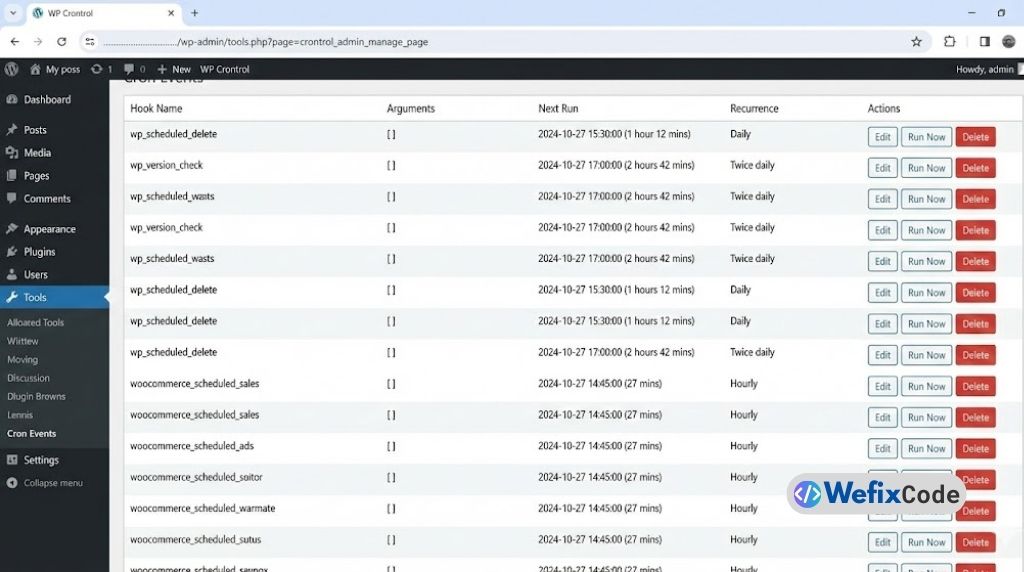
The “Senior Developer” way to check is using a plugin called WP Crontrol (we use this for debugging, then delete it).
- Install WP Crontrol.
- Go to Tools > Cron Events.
- Look at the Next Run column.
- If it says “In 2 minutes,” wait 5 minutes and refresh.
- If the time updates correctly, your System Cron is working.
- If it says “Now” or remains stuck in the past, your System Cron command is failing (check the path).
Advanced: Handling Heavy Tasks (Backups & Imports)
Sometimes, even with a System Cron, heavy tasks like WooCommerce renewals or large backups can timeout.
This happens because PHP has a max_execution_time (usually 30 or 60 seconds). If a backup takes 3 minutes, the server kills it.
The “Loopback” Trick
If you are running complex data operations (like the Custom Database Tables we discussed previously), you might need to increase the time limit specifically for cron requests.
Add this to your functions.php or a custom plugin:
if ( defined( 'DOING_CRON' ) && DOING_CRON ) {
    set_time_limit( 300 ); // Increase to 5 minutes for cron jobs only
}
Warning: Only do this if your server allows overriding the PHP limit.
When NOT to Disable WP-Cron?
Is there ever a reason to keep the default setting? Yes. If you are on Shared Hosting that does not allow System Cron jobs (very cheap plans), you must keep the default WP-Cron active. In that case, you rely on visitors to trigger events. If your traffic is low, use an external uptime monitor (like UptimeRobot) to ping your homepage every 5 minutes. This simulates a visitor.
Conclusion
A professional WordPress site cannot rely on luck. Leaving WP-Cron enabled is asking for “Missed Schedule” errors and high CPU usage.
The Protocol: ✅ Disable DISABLE_WP_CRON in wp-config.php. ✅ Set up a server-side Cron Job (wget/curl) to run every 5-15 minutes. ✅ Verify using WP Crontrol.
This is the hidden infrastructure change that stabilizes your backups, ensures your emails send, and speeds up your frontend for users.
Need help configuring your server environment? Our team specializes in performance architecture.
Pingback: Fixing the WordPress White Screen of Death: A Memory & Resource Guide - WeFixCode