
Waking up to find your business website redirecting to a spam site—or worse, displaying a “Deceptive Site Ahead” warning from Google—is a nightmare.
You probably did what most people do: you installed a security plugin, hit “Scan,” and waited. Maybe the plugin found a few files and “fixed” them. You breathed a sigh of relief.
But 24 hours later, the malware was back.
Why does this happen?
Automated plugins are excellent for monitoring your site, but they often fail at deep cleaning. Sophisticated malware doesn’t just sit in one file. It creates “backdoors”—hidden entry points buried deep in your database or disguised as legitimate WordPress system files. If you miss just one backdoor, the hacker can reinfect your site within minutes.
As senior developers, we don’t rely on a “Scan” button to save a business. We use a surgical, manual approach to ensure every line of code is authentic.
In this guide, I will walk you through the Core Replacement Method. This is the exact protocol we use at WeFixCode to rescue compromised sites when everything else has failed.
Step 0: The “Do No Harm” Preparation
STOP. Before you touch a single file, you must create a backup.
Even though your site is currently hacked, a “hacked backup” is better than a “broken site.” During the cleaning process, we will be deleting core server files. If you make a mistake, you will need a restore point.
- Log in to your Hosting Panel (cPanel/DirectAdmin) or use an FTP client like FileZilla.
- Download your
public_htmlfolder to your computer. - Export your Database (SQL file) via phpMyAdmin.
Once you have these two files safely on your desktop, you are ready to operate.
Step 1: The “Nuclear” Option (Replacing Core Files)
Most tutorials tell you to search through your files looking for “suspicious code.” This is a waste of time.
WordPress contains thousands of core files. Finding a single line of malicious code inside wp-admin is like finding a needle in a haystack.
Instead of searching for the needle, we are going to replace the entire haystack.
We will delete your potentially infected system files and replace them with fresh, 100% clean copies directly from the official WordPress repository. This guarantees that your core system is clean without you having to read a single line of code.
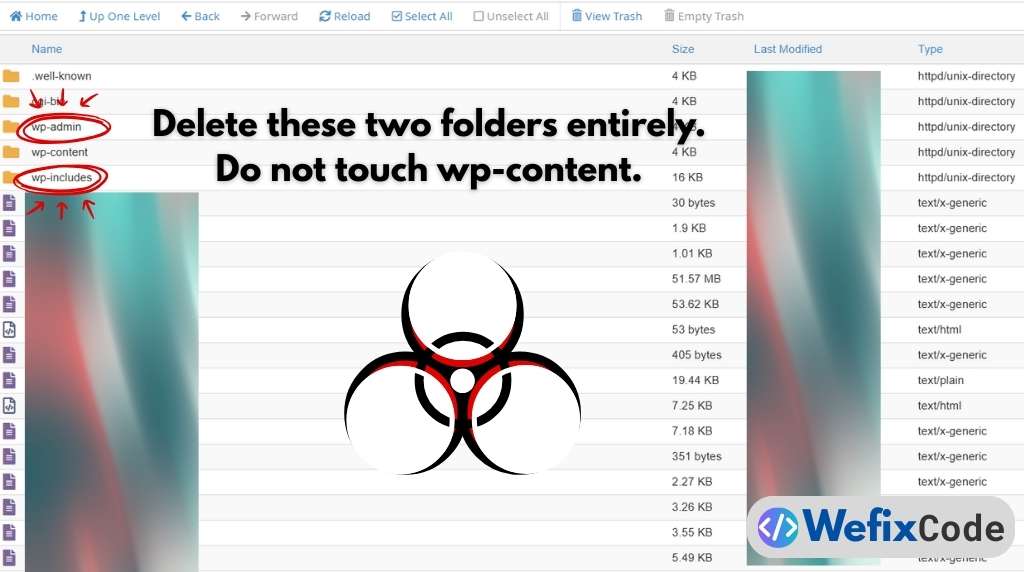
The Protocol:
- Get Fresh Files: Go to and download the latest version of WordPress. Unzip this file on your computer.
- Connect to Your Server: Open your FTP client or File Manager and navigate to your website’s root folder (usually
public_html). - The Purge (Critical Step):
- Locate the folder named
wp-admin. Delete it entirely. - Locate the folder named
wp-includes. Delete it entirely. - WARNING: DO NOT delete the
wp-contentfolder. This folder contains your images, themes, and plugins. If you delete this, you lose your site’s design and data. - WARNING: DO NOT delete
wp-config.php. This file connects your site to the database.
- Locate the folder named
- The Replacement:
- Open the fresh WordPress folder you unzipped on your computer.
- Upload the clean
wp-adminandwp-includesfolders to your server. - Overwrite any root files (like
index.phporwp-settings.php) with the fresh copies.
What you just achieved: By doing this, you have instantly removed any malware that was hiding inside your core system folders. You didn’t have to scan for it—you simply erased the places where it likes to hide.
However, we aren’t done yet. Malware rarely lives in the core files alone. It loves to hide in your /uploads/ folder and your database.
Step 2: The wp-content Audit (Where Malware Lives)
This is the most dangerous part of the cleanup. We just replaced the core files (wp-admin, wp-includes), so we know those are clean. But we could not delete the wp-content folder because that is where your images, themes, and plugins live.
This is exactly why hackers love to hide here.
Because this folder must be “writable” for you to upload images, it is the perfect place for a hacker to upload a “backdoor”—a small script that lets them re-enter your site even after you change your passwords.
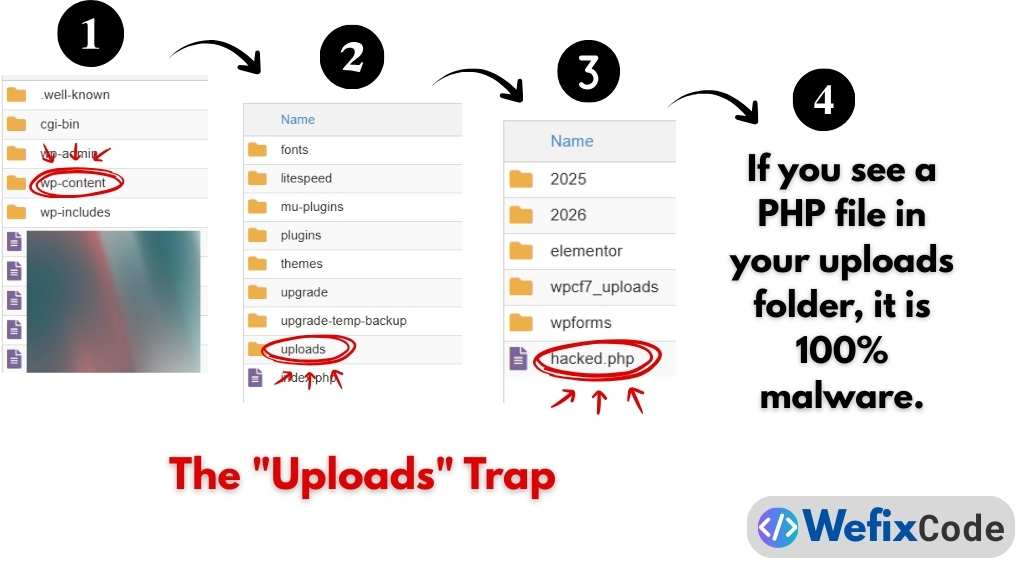
A. The “Uploads” Trap
Navigate to wp-content/uploads. This folder should only contain media files like images (.jpg, .png, .gif), documents (.pdf), or videos (.mp4).
It should NEVER contain a PHP file.
- Search: Use your file manager to search inside
wp-content/uploadsfor any file ending in.php. - Destroy: If you find a file like
image_fix.php,x34a.php, or evensocial.png.php, delete it immediately. - The Rule: If it ends in
.phpand it is in your uploads folder, it is malware. There are almost no exceptions to this rule.
B. The Plugin Protocol
Navigate to wp-content/plugins.
If you have 20 plugins, it is tedious to check every single file. The “Senior Developer” way to fix this is not to check them, but to replace them.
- Look at your list of plugins.
- Delete the folders of free plugins (like
contact-form-7,yoast-seo, etc.). - Re-install them fresh from the WordPress dashboard later.
- For Premium Plugins: Open the folder and check the files manually. Look for strange file names that don’t match the others (e.g., a file named
db_cache.phpinside a slider plugin). If you are unsure, delete the plugin and download a fresh copy from the developer.
Step 3: The Silent Killer (Database & Config)
Cleaning the files is only half the battle. Sophisticated malware injects itself directly into your database or your server configuration files. If you don’t clean this, the hack will return within hours.
A. The Configuration File (wp-config.php)
This file lives in your main folder. It connects your site to the database.
- Open
wp-config.phpin a text editor. - The Check: Look at the very top of the file (before the first
<?phpor immediately after it). - The Red Flag: If you see long strings of random letters and numbers (like eval ( base64_decode ( … ) ), that is malware.
- The Fix: Compare your file to the default
wp-config-sample.php. Delete the strange code. Keep only your database credentials (DB_NAME, DB_USER, DB_PASSWORD).
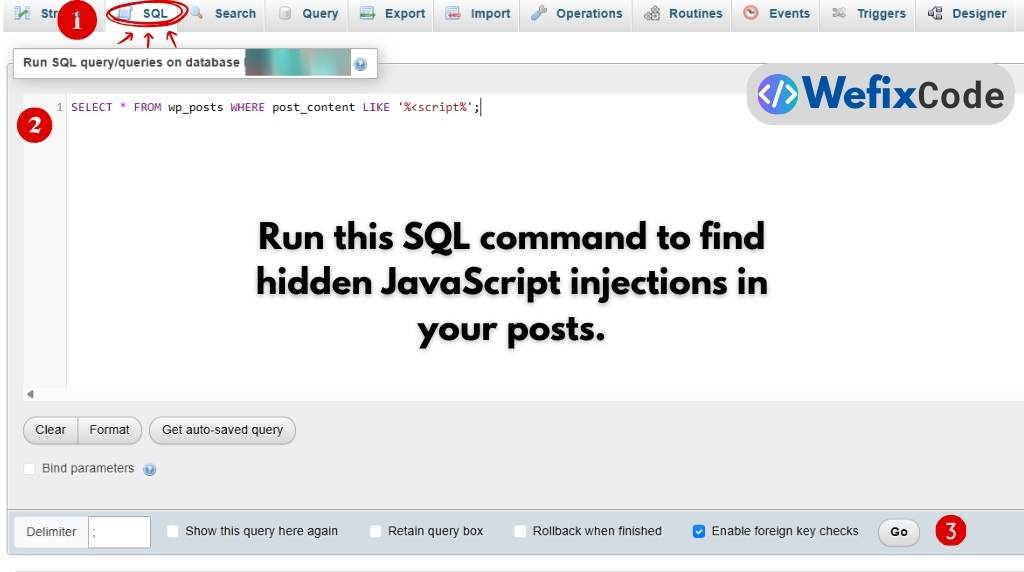
B. The Database Scrub (SQL Injection)
Hackers often inject malicious JavaScript directly into your posts and pages. This creates those annoying “redirects” where visitors are sent to spam sites.
To find these, we need to run a specific command in your database.
- Log in to phpMyAdmin (from your hosting panel).
- Select your website’s database.
- Click on the “SQL” tab.
- Run this query:
SELECT * FROM wp_posts WHERE post_content LIKE ‘%[{script}]%’;
- Analyze: This will show you every post that contains a JavaScript tag.
- If you wrote the script yourself (e.g., for Google Analytics), it is fine.
- If you see strange scripts linking to other websites (e.g.,
<script src="http://malware-site.com/js"></script>), you have found the infection. - You can manually edit those posts to remove the script tags.
Step 4: Hardening the Site (Closing the Door)
Congratulations. You have replaced the core files, cleaned the wp-content folder, and scrubbed the database. Your site is technically “clean.”
But the hacker might still have a key.
If you don’t change the locks immediately, they will walk right back in. Here is the mandatory security checklist you must complete before logging out.
- Change Every Password:
- WordPress Admin: Change your password to something strong (16+ characters).
- Database User: Log into your hosting panel (cPanel) and change the database user password. Note: You will need to update
wp-config.phpwith the new password immediately after doing this. - FTP/Hosting Account: Change the password for your hosting account itself.
- Force Logout Everyone (The “Salts” Trick):
- Open your
wp-config.phpfile again. - Scroll down to the section that says
Authentication Unique Keys and Salts. - Go to the WordPress Salt Generator (this is an official WordPress tool).
- Copy the new keys and paste them into your file, replacing the old ones.
- Why? This invalidates every single login cookie. If the hacker is currently logged in, they will be instantly kicked out.
- Open your
- Update Everything:
- Go to your WordPress Dashboard > Updates.
- Update WordPress Core, all Themes, and all Plugins to the latest version immediately. Outdated software is the #1 way hackers get in.
- Install a Firewall (Now):
- Now that the site is clean, install a reputable security plugin like Wordfence or Sucuri.
- Configure the “Firewall” to
EnabledandLearning Mode. This will block future brute-force attacks.
Conclusion: Is Your Site Truly Safe?
Manual malware removal is surgical work. We have covered the “Core Replacement” method, which fixes about 90% of hacks.
However, sophisticated malware can hide in:
- Cron jobs (scheduled tasks).
- Hidden administrative users (often named
support_useroradmin_backup). - Nulled themes or plugins (pirated software).
If you followed this guide and your site is still redirecting or showing errors, the infection is likely buried deeper in the server architecture.
Don’t risk your business reputation on a “maybe.”
At WeFixCode, we clean compromised sites daily. We don’t just scan files; we manually audit the code, secure the database, and patch the vulnerabilities that let the hacker in.
Need a Professional Cleanup? Book an Emergency Cleanup Service today. We offer a 100% Clean Guarantee—if we can’t fix it, you don’t pay.
Pingback: 7 .htaccess Rules to Harden WordPress Security (Without Plugins) - WeFixCode
Pingback: Building SaaS and Web Applications on WordPress: A Senior Developer’s Architecture Guide - WeFixCode