
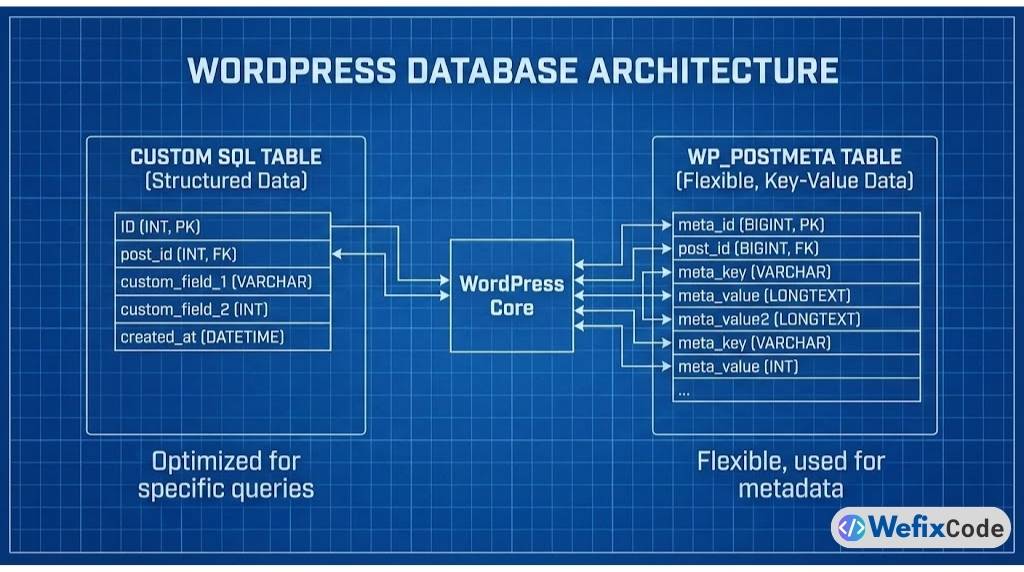
WordPress is famous for its flexibility. You can build almost anything using “Custom Post Types” (CPT) and “Custom Fields” (Post Meta).
But as your application grows, you will hit a wall.
If you are building a high-traffic system—like a custom logging system, a complex booking engine, or an inventory tracker—storing everything in wp_posts and wp_postmeta is a performance suicide mission.
Why? Because wp_postmeta is a non-normalized table. Every single piece of data (price, color, size, date) gets its own row. To fetch one product with 20 attributes, WordPress has to join the table 20 times.
When you have 100,000 rows, your site crashes.
The Solution: Stop abusing Post Meta. Create your own custom SQL tables.
In this senior-level guide, we will walk through exactly how to create, manage, and interact with custom database tables in WordPress using the $wpdb class and dbDelta. No plugins. Just pure, efficient code.
Why Custom Tables? (The Performance Argument)
Before we write code, you need to understand why we are doing this.
1. Speed & Indexing
Standard WordPress queries are slow because they rely on the meta_key and meta_value columns, which are indexed inefficiently for complex searches. A custom table allows you to define your own indexes.
- Post Meta Query: “Search 1 million rows for
meta_key = 'status'.” -> Time: 2.5 seconds. - Custom Table Query: “Search column
status.” -> Time: 0.05 seconds. - Custom tables reduce database bloat significantly. This is the backend equivalent of optimizing Elementor containers to make your frontend load faster.
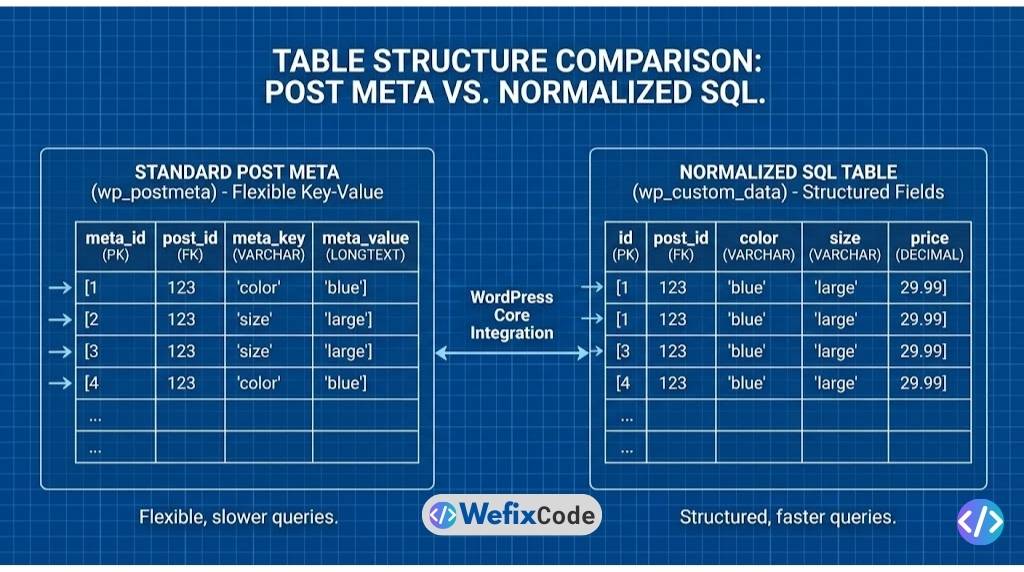
wp_postmeta (vertical storage) vs. Custom SQL Tables (horizontal storage).2. Data Integrity
In wp_postmeta, everything is a string (text). If you want to store a number or a date, it gets saved as text. This makes mathematical sorting (e.g., “Sort by Price Low to High”) incredibly heavy on the CPU. In a custom table, you can define columns as INT, FLOAT, or DATETIME, ensuring your data is strict and sortable instantly.
3. Clean Architecture
Separating your application data (e.g., “Transaction Logs”) from your content data (e.g., “Blog Posts”) keeps your database clean and portable.
Step 1: The Setup (The Plugin Structure)
We never write this code in functions.php. Database modifications belong in a custom plugin.
Create a folder in wp-content/plugins/ called wefixcode-custom-db. Inside, create a file named wefixcode-custom-db.php.
<?php
/*
Plugin Name: WeFixCode Custom DB Demo
Description: A senior-level demonstration of creating custom SQL tables.
Version: 1.0
Author: WeFixCode
*/

if ( ! defined( 'ABSPATH' ) ) {
    exit; // Exit if accessed directly
}
Step 2: Defining the Schema (The Blueprint)
WordPress provides a specific function called dbDelta() to create and update tables. It is brilliant because it compares your current table structure with the new one and only applies the changes (e.g., adding a new column) without erasing your data.
Be careful with dbDelta. One syntax error here won’t just break the query; it can cause a Critical Error on your site, so always test on staging first.
We will hook our creation function into register_activation_hook.
register_activation_hook( __FILE__, 'wfc_create_custom_table' );

function wfc_create_custom_table() {
    global $wpdb;

    // 1. Define the table name with the dynamic prefix (usually wp_)
    $table_name = $wpdb->prefix . 'wfc_transactions';

    // 2. The SQL Schema
    $charset_collate = $wpdb->get_charset_collate();

    $sql = "CREATE TABLE $table_name (
        id mediumint(9) NOT NULL AUTO_INCREMENT,
        time datetime DEFAULT '0000-00-00 00:00:00' NOT NULL,
        customer_id mediumint(9) NOT NULL,
        amount decimal(10,2) NOT NULL,
        status varchar(20) DEFAULT 'pending' NOT NULL,
        gateway varchar(50) DEFAULT '' NOT NULL,
        PRIMARY KEY  (id),
        KEY status (status),
        KEY customer_id (customer_id)
    ) $charset_collate;";

    // 3. Include the upgrade file required for dbDelta
    require_once( ABSPATH . 'wp-admin/includes/upgrade.php' );

    // 4. Run the query
    dbDelta( $sql );

    // 5. Save the DB version for future updates
    add_option( 'wfc_db_version', '1.0' );
}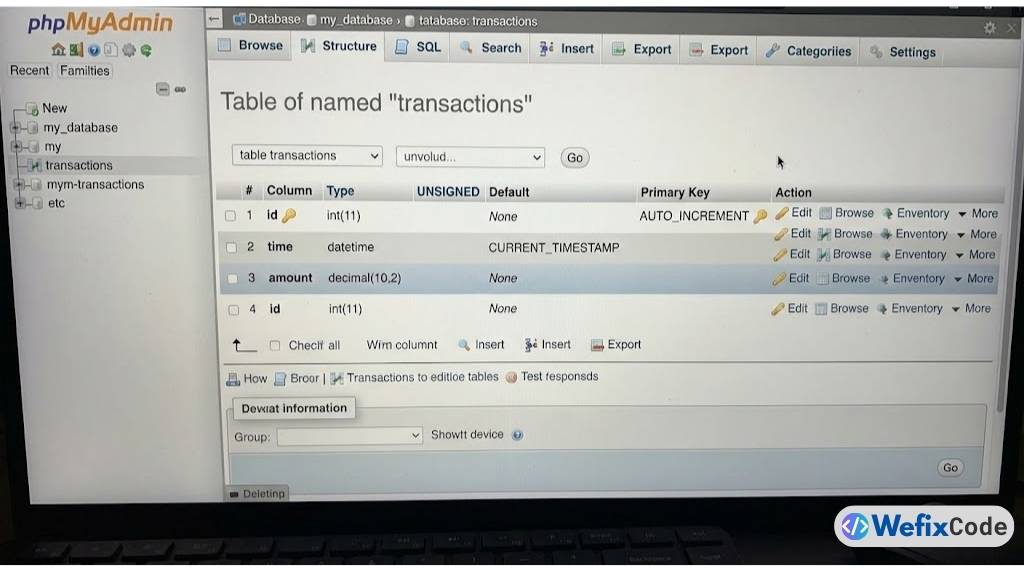
wp_wfc_transactions created inside phpMyAdmin with correct column types.Code Analysis:
$wpdb->prefix: Never hardcodewp_. Always use the dynamic prefix.decimal(10,2): We useDECIMALfor money, neverFLOAT(which creates rounding errors).KEY: We added keys (indexes) tostatusandcustomer_id. This makes searching by these columns instant.dbDelta(): This function parses the SQL and executes it safely. Crucial Note: You must follow specific formatting rules (e.g., two spaces afterPRIMARY KEY) ordbDeltawill fail.
For a complete list of strict formatting rules (like distinct spacing), refer to the official WordPress dbDelta documentation.
Step 3: Inserting Data ($wpdb->insert)
Now that the table exists, let’s add data. Do not write raw INSERT INTO queries. WordPress gives us a sanitized helper method.
function wfc_log_transaction( $customer_id, $amount, $gateway ) {
    global $wpdb;
    $table_name = $wpdb->prefix . 'wfc_transactions';

    $wpdb->insert(
        $table_name,
        array(
            'time' => current_time( 'mysql' ),
            'customer_id' => $customer_id,
            'amount' => $amount,
            'status' => 'completed',
            'gateway' => $gateway
        ),
        array(
            '%s', // time (string)
            '%d', // customer_id (integer)
            '%f', // amount (float/decimal)
            '%s', // status (string)
            '%s'  // gateway (string)
        )
    );

    // Returns the ID of the new row
    return $wpdb->insert_id;
}
Why use $wpdb->insert?
It automatically prepares your statement, protecting you from SQL Injection attacks. It handles all the escaping for you.
Step 4: Querying Data (The Performant Way)
Fetching data from your custom table is where you see the speed difference.
function wfc_get_customer_total( $customer_id ) {
    global $wpdb;
    $table_name = $wpdb->prefix . 'wfc_transactions';

    // Prepare the SQL safely
    $query = $wpdb->prepare(
        "SELECT SUM(amount) FROM $table_name WHERE customer_id = %d AND status = %s",
        $customer_id,
        'completed'
    );

    // Get a single variable (the sum)
    $total = $wpdb->get_var( $query );

    return $total ? $total : 0;
}
If we did this with wp_postmeta, we would have to loop through hundreds of order posts, get the meta value for each, and add them up in PHP. That consumes massive memory. With SQL, the database does the math in milliseconds and sends back a single number.
Step 5: Updating and Deleting
Just like inserting, WordPress provides helpers for updates and deletions.
Updating a Row:
$wpdb->update(
    $table_name,
    array( 'status' => 'refunded' ), // Data to update
    array( 'id' => 15 ), // Where clause
    array( '%s' ), // Format of data
    array( '%d' )  // Format of where
);
Deleting a Row:
$wpdb->delete(
    $table_name,
    array( 'id' => 15 ),
    array( '%d' )
);
Step 6: Exposing Data to the Admin Panel
A database table is useless if you can’t see it. The “WordPress Way” to show this data is by extending the WP_List_Table class. This is how WordPress renders the lists for Posts, Pages, and Users.
Note: The WP_List_Table class is internal, so we have to copy a bit of boilerplate. Here is a simplified example of how to render it in a custom admin page.
add_action( 'admin_menu', 'wfc_add_admin_page' );

function wfc_add_admin_page() {
    add_menu_page(
        'Transactions',
        'Transactions',
        'manage_options',
        'wfc-transactions',
        'wfc_render_admin_page',
        'dashicons-database',
        6
    );
}

function wfc_render_admin_page() {
    global $wpdb;
    $table_name = $wpdb->prefix . 'wfc_transactions';
    $results = $wpdb->get_results( "SELECT * FROM $table_name ORDER BY time DESC LIMIT 50" );

    echo '<div class="wrap"><h1>Transaction Log</h1>';
    echo '<table class="wp-list-table widefat fixed striped">';
    echo '<thead><tr><th>ID</th><th>Date</th><th>Customer</th><th>Amount</th><th>Status</th></tr></thead>';
    echo '<tbody>';

    foreach ( $results as $row ) {
        echo "<tr>";
        echo "<td>{$row->id}</td>";
        echo "<td>{$row->time}</td>";
        echo "<td>{$row->customer_id}</td>";
        echo "<td>{$row->amount}</td>";
        echo "<td><span class='badge-{$row->status}'>{$row->status}</span></td>";
        echo "</tr>";
    }

    echo '</tbody></table></div>';
}
Conclusion: When to Use This?
Building custom tables adds complexity. You have to write your own CRUD (Create, Read, Update, Delete) methods and build your own admin UI.
Do NOT use custom tables for:
- Simple blogs.
- Standard brochure websites.
- Anything that fits perfectly into the Title/Content/Category model.
DO use custom tables for:
- Logging: Tracking user activity, API requests, or errors.
- Complex Relations: An LMS (Learning Management System) tracking student progress.
- High-Volume Data: Voting systems, analytics, or transaction ledgers.
As a senior developer, knowing when to leave wp_postmeta behind is the difference between a site that scales to 1 million users and a site that crashes on launch day.
Pingback: Why Your Scheduled Events Fail: The Guide to Replacing WP-Cron with Real Cron - WeFixCode