
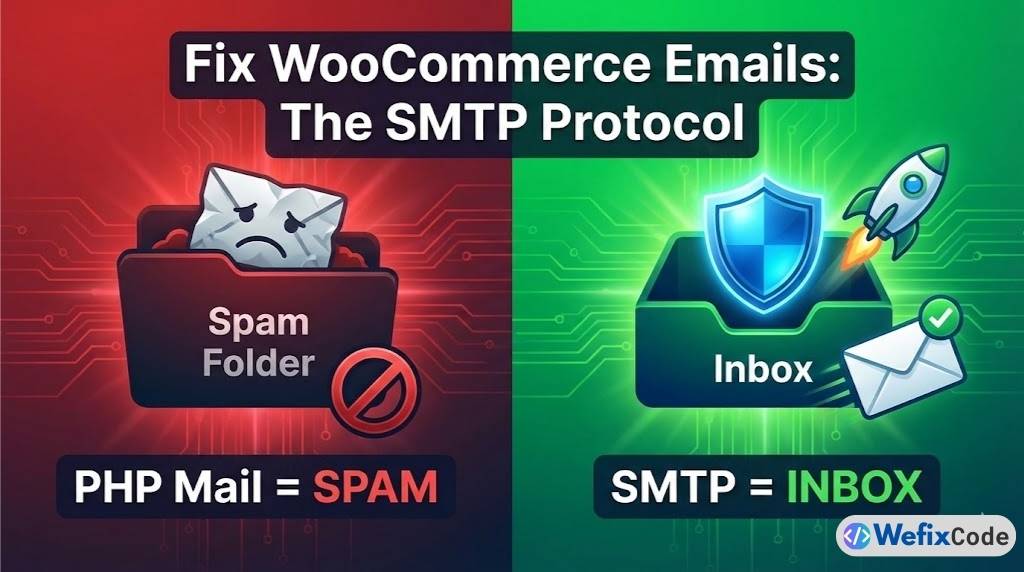
You just launched your store. A customer places an order. You get the payment notification from Stripe, but the customer… gets nothing.
No receipt. No “Thank You” email.
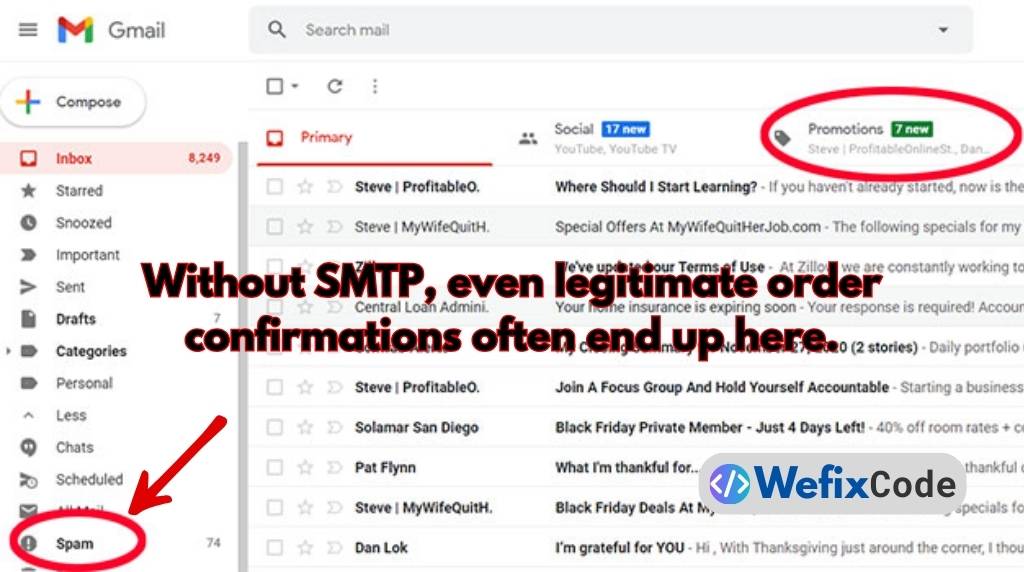
Or worse, they find your order confirmation in their Spam Folder three days later.
This is not a “glitch.” This is a fundamental flaw in how most WordPress sites are set up. If you are relying on the default WordPress email settings, you are doing it wrong.
As Senior Developers, we don’t let servers “guess” how to send mail. We authenticate it.
Here is why your WooCommerce emails are failing and the SMTP Protocol we use to fix it permanently.
The Problem: wp_mail() vs. The World
By default, WordPress uses a PHP function called wp_mail() to send emails. It tries to route the email directly through your web hosting server (e.g., Bluehost, SiteGround, or your VPS).
Why this fails:
- No Authentication: PHP mail sends email like an anonymous letter. It lacks the “Digital ID Card” (DKIM/SPF signatures) that Gmail and Outlook require to prove you are real.
- Shared IP Blacklists: f your hosting is causing email issues, it might also be slowing down your site. Read our guide on Why Your Elementor Site is Slow to see if your server is the bottleneck.
- Strict Filters: In 2026, Gmail and Yahoo automatically block unauthenticated emails.
The Solution: Stop using your web server to send email. Use a dedicated SMTP (Simple Mail Transfer Protocol) provider.
Step 1: Choose a Transactional Email Provider
Do not use your personal Gmail (@gmail.com) for this. You need a professional relay service.
- Small Stores (< 300 emails/day): Brevo (formerly Sendinblue) has a free tier that is excellent.
- Large Stores: SendGrid or Amazon SES (Simple Email Service).
- Google Workspace Users: You can use your Google Workspace account, but it requires an App Password.
Step 2: Install an SMTP Plugin
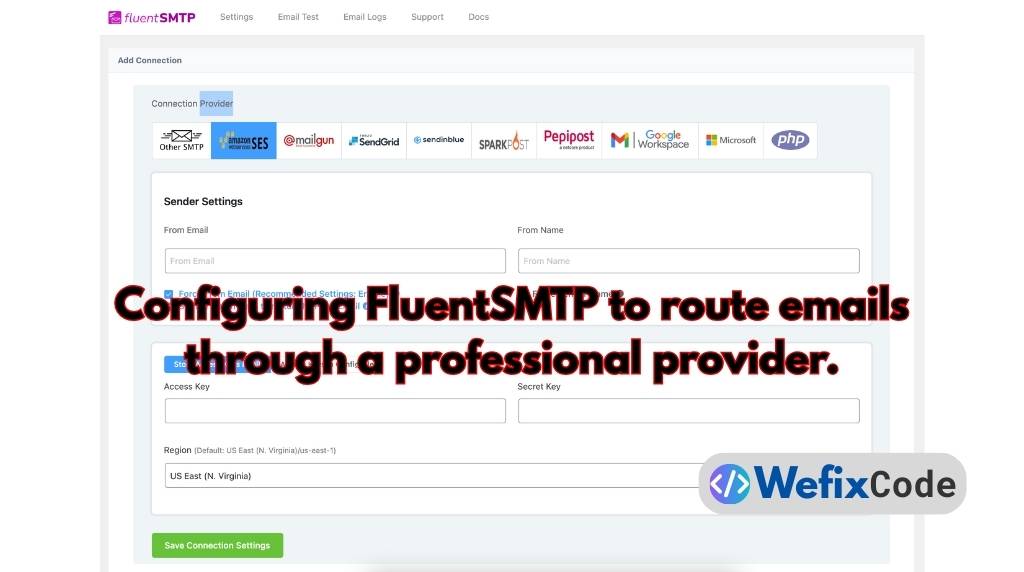
You need a plugin to “reroute” WordPress emails from PHP Mail to your new Provider.
We recommend FluentSMTP (Free & Open Source) or WP Mail SMTP.
- Go to Plugins > Add New.
- Search for FluentSMTP.
- Install and Activate.
Why FluentSMTP? Because unlike others, it doesn’t hide features behind a paywall and offers detailed email logs so you can debug failures.
Step 3: The Connection (The “Handshake”)
Once activated, go to Settings > FluentSMTP.
- Select your Connection: Choose the provider you signed up with (e.g., Brevo, Google, or “Other SMTP”).
- From Email: Enter your business email (e.g.,
orders@wefixcode.com). - From Name: Enter your Business Name.
- API Key / Password: Paste the API Key provided by your email service.
Click “Save Connection Settings.”
Step 4: The “Senior Dev” Step (DNS Records)
This is the step most tutorials skip, and it is the reason your emails still land in Spam.
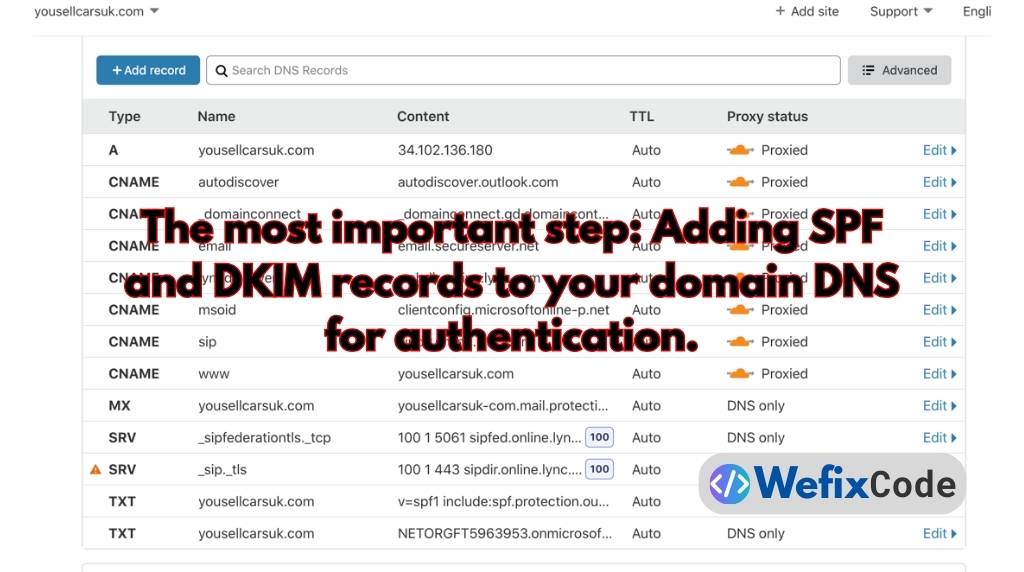
You must tell the world (Google, Yahoo, Outlook) that your email provider is authorized to send email on your behalf. You do this by adding text records to your Domain DNS (Cloudflare, GoDaddy, or Namecheap).
1. SPF (Sender Policy Framework): It looks like this: v=spf1 include:sendinblue.com ~all Translation: “Only Sendinblue is allowed to send email for this domain.”
2. DKIM (DomainKeys Identified Mail): This is a digital signature attached to every email. Your provider (Brevo/SendGrid) will give you a long code. Paste it into your DNS as a TXT record.
3. DMARC: This tells Gmail what to do if an email fails the check. Record: v=DMARC1; p=none;
Step 5: Send a Test Email
- Go to FluentSMTP > Email Test.
- Enter your personal Gmail address.
- Click Send Email.
Check your Inbox. If it arrives instantly (not in Spam), you have fixed the issue. If it fails, check the Email Logs tab. It will tell you exactly why (e.g., “Connection Refused” usually means a wrong port or password).
Summary
Your e-commerce store is only as good as its communication. If customers don’t get receipts, they charge back.
The Fix Checklist: ✅ Disable default PHP Mail. ✅ Route emails through a professional SMTP provider (Brevo/SendGrid). ✅ Authenticate your domain with SPF and DKIM records.
Don’t let your revenue get lost in the Spam folder.
Need help configuring your DNS records? We fix email deliverability issues safely.
Pingback: Debugging the “Critical Error” in WordPress: A Developer’s Checklist - WeFixCode
Pingback: Why Your Scheduled Events Fail: The Guide to Replacing WP-Cron with Real Cron - WeFixCode