
The “Critical Error” box is scary, but at least it tells you something is wrong. The White Screen of Death (WSOD) is worse. It is just… silence.
You load your homepage, and the browser displays a blank, white page. No error message. No dashboard access. Just nothing.
In modern WordPress (versions 6.0+), this usually means the error was so severe that the server crashed before it could even generate the “Critical Error” template.
As Senior Developers, we know this is rarely a plugin conflict (though it can be). 90% of the time, a true White Screen is caused by Resource Exhaustion. Your website tried to grab more RAM or time than the server allowed, and the server killed the process instantly.
Here is the developer’s guide to reviving a site that has gone completely silent.
1. The Usual Suspect: PHP Memory Exhaustion
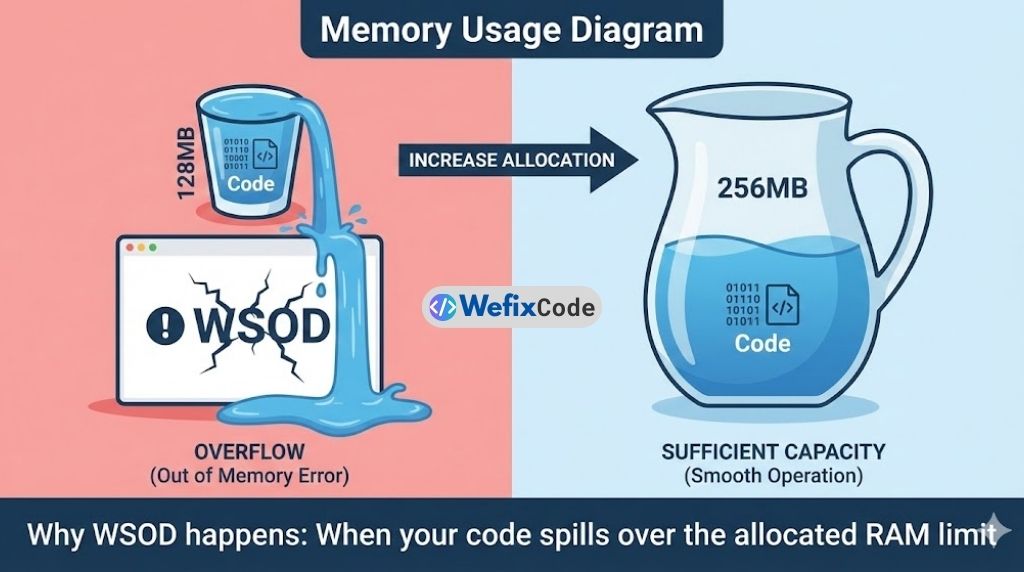
WordPress is written in PHP. Every time a visitor loads a page, PHP needs “Memory” (RAM) to build the site.
- Standard hosting often defaults to 64MB or 128MB.
- A heavy Elementor site with WooCommerce might need 256MB just to load the admin panel.
When WordPress hits the ceiling (e.g., usage hits 128MB on a 128MB limit), the script stops instantly. It doesn’t have enough RAM to print an error message. Hence: White Screen.
The Fix: Increase RAM in wp-config.php
We need to manually tell WordPress it is allowed to use more memory.
- Access your site via FTP.
- Open
wp-config.php. - Look for a line that says
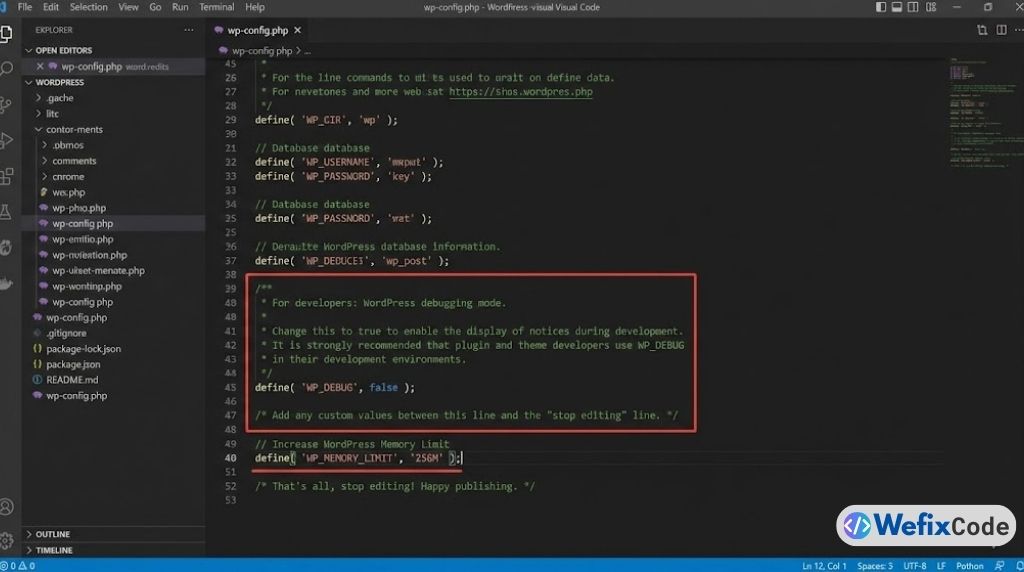
WP_MEMORY_LIMIT. - If it doesn’t exist, add this code just before “That’s all, stop editing”:
define( 'WP_MEMORY_LIMIT', '256M' );Pro Tip: If you have a heavy WooCommerce store, you might even need 512M.Note: Do not go higher than 512M unless you are on a dedicated VPS. Shared hosts will ban you if you try to grab 2GB of RAM.
2. The “Timeout” Killer: max_execution_time
If increasing memory didn’t fix it, your site might be “timing out.” PHP scripts have a time limit (usually 30 seconds) to finish loading. If a plugin is trying to process a massive image or import a huge CSV file, it might take 45 seconds.
At the 30-second mark, the server acts like a referee and blows the whistle. Game over. White Screen.
The Fix: Edit .htaccess
This limit is controlled by the server, not WordPress. We can try to override it.
- In your FTP, find the
.htaccessfile (it is often hidden, so ensure “Show Hidden Files” is on). - Add this line at the bottom:
php_value max_execution_time 300This increases the limit to 300 seconds (5 minutes).If this crashes your site (Error 500), remove the line immediately. It means your host blocks manual overrides.
3. The “Silent” Syntax Error
Sometimes, a developer (or you) pastes a code snippet from a tutorial into functions.php and misses a semicolon ;. In PHP, a syntax error is “Fatal.” The compiler cannot read the file, so it stops immediately.
If you recently edited code and the screen went white:
- Do not panic.
- Log in via FTP.
- Navigate to the file you just edited (usually
/wp-content/themes/your-theme/functions.php). - Undo your last change or re-upload a fresh copy of the file.
4. Enable “The Black Box” (Debug Mode)
If you have increased Memory and Time limits and the screen is still white, you need to force WordPress to speak.
We covered this in our Critical Error Guide, but it bears repeating. You must enable debug mode to see the hidden error message on the white screen.
In wp-config.php:
define( 'WP_DEBUG', true );
define( 'WP_DEBUG_LOG', true );
define( 'WP_DEBUG_DISPLAY', false );
Now, check the file /wp-content/debug.log. The error will be printed there. It will likely say:
“PHP Fatal Error: Allowed memory size of 134217728 bytes exhausted…”
This confirms your memory upgrade in Step 1 didn’t work (likely because your hosting provider has a hard cap).
5. When to Call Your Host
If you set the limit to 256M in wp-config.php but the debug log still says “Exhausted 128MB,” it means your host is overriding you.
Cheap shared hosting plans often “hard lock” memory limits to prevent one user from slowing down the whole server.
- The Solution: Open a support ticket and ask: “Please increase my PHP Memory Limit to 256MB.”
- If they say no, it is time to upgrade to a VPS or Cloud Hosting provider.
Summary
The White Screen of Death is almost always a resource war. Your WordPress site is asking for resources, and your server is saying “No.”
The Resource Checklist: ✅ Memory: Increase WP_MEMORY_LIMIT to 256M. ✅ Time: Increase max_execution_time to 300s. ✅ Debug: Check the debug.log to confirm if the host is blocking your changes.
Don’t let a silent error kill your business. Give your site the RAM it needs to breathe.